

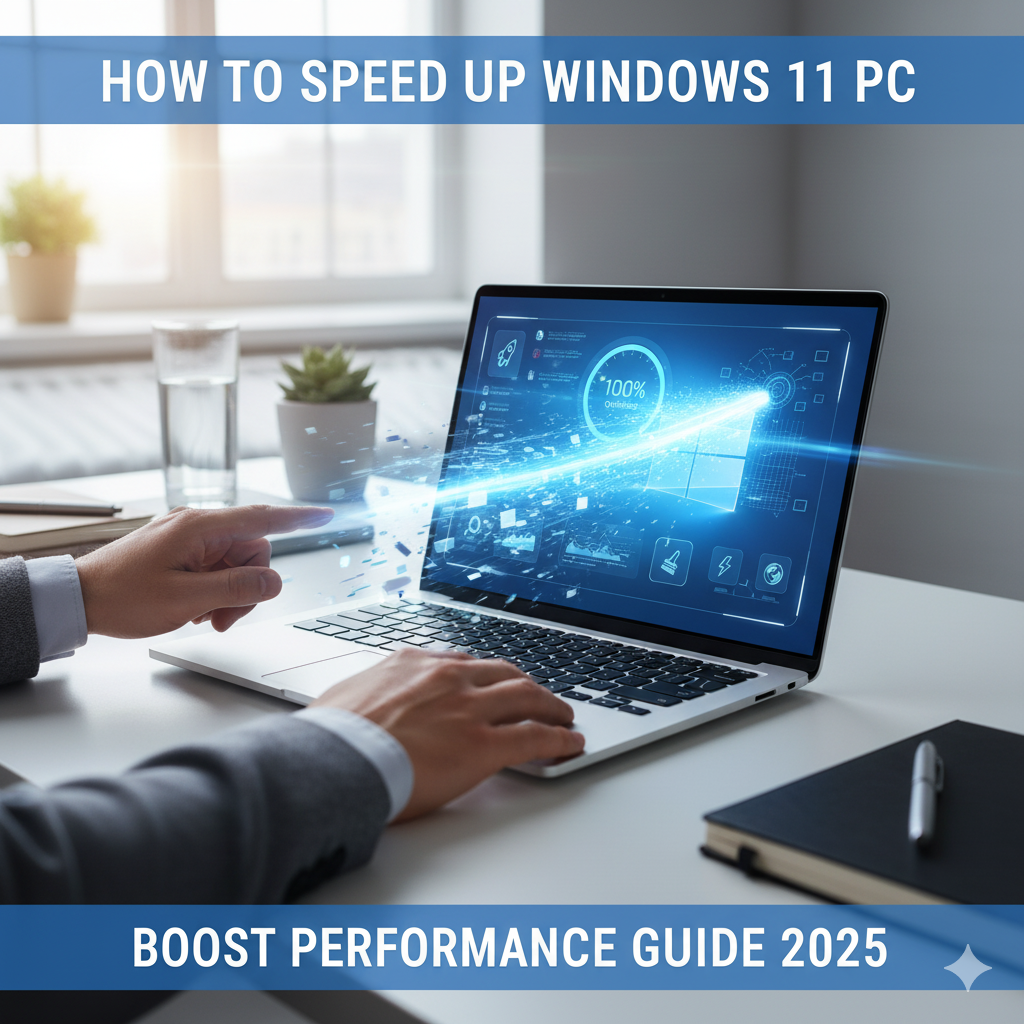


Windows 11 is designed to be faster and more efficient than previous versions, but over time, your PC may start slowing down due to background apps, unnecessary startup programs, or storage issues.
If your computer feels sluggish, don’t worry. In this step-by-step guide, we’ll share proven methods to speed up Windows 11 in 2025 and keep your PC running smoothly without extra software.
—
1. Disable Unnecessary Startup Programs
Press Ctrl + Shift + Esc to open Task Manager.
Go to the Startup Apps tab.
Disable apps that you don’t need to launch automatically.
👉 This reduces boot time significantly.

—
2. Uninstall Bloatware and Unused Programs
Open Settings > Apps > Installed apps.
Remove apps you don’t use.
Many pre-installed apps slow down performance unnecessarily.
—
3. Use Storage Sense to Free Up Space
Open Settings > System > Storage.
Turn on Storage Sense to automatically delete temporary files, recycle bin data, and unused items.
Keeping your disk clean boosts performance.
—
4. Optimize Background Apps
Open Settings > Apps > Apps & features.
Select an app → Click Advanced options.
Under Background apps permissions, set it to Never.
👉 This reduces RAM usage.
—
5. Adjust Visual Effects for Better Speed
Press Win + R, type sysdm.cpl, and hit Enter.
Go to Advanced > Performance > Settings.
Select Adjust for best performance.
👉 This disables unnecessary animations and makes Windows faster.
—
6. Run Disk Cleanup
Search for Disk Cleanup in Start menu.
Select drive C: and remove temporary files, cache, and system logs.
Helps in freeing up gigabytes of space.
—
7. Update Windows and Drivers
Go to Settings > Windows Update.
Install the latest updates for security & performance.
Also update drivers using Device Manager.
—
8. Use ReadyBoost (For PCs with Low RAM)
Insert a USB flash drive.
Right-click → Properties → ReadyBoost tab.
Enable Use this device.
👉 This boosts system speed using USB as extra cache.
—
9. Defragment and Optimize Drives
Search for Defragment and Optimize Drives in Start.
Select your hard disk (HDD) and click Optimize.
If you use SSD, Windows auto-optimizes it.
—
10. Upgrade Hardware (If Needed)
Sometimes, software optimization isn’t enough.
Add more RAM (8GB → 16GB)
Switch from HDD to SSD for faster boot & loading times
Upgrade CPU/GPU if you use heavy apps
—
Bonus Tips
Use Lightweight Antivirus (Windows Defender is good enough)
Turn off unnecessary notifications
Keep only essential apps installed
—
FAQs
Q1: Why is my Windows 11 laptop so slow?
➡ Too many startup programs, low RAM, or storage issues.
Q2: Does upgrading to SSD really speed up Windows 11?
➡ Yes, SSD improves boot time and app loading drastically.
Q3: Can Windows 11 run smoothly on 4GB RAM?
➡ It works, but at least 8GB is recommended for smooth performance.
Q4: Should I disable all startup apps?
➡ No, keep antivirus and essential drivers enabled.
Q5: How often should I run Disk Cleanup?
➡ At least once a month for best performance.
—
Conclusion
By following these simple steps, you can speed up Windows 11 in 2025 and make your PC feel brand new again. Disabling startup apps, uninstalling bloatware, upgrading to SSD, and keeping your system updated are the key to faster performance.
👉 With regular maintenance, your Windows 11 computer will run smoother, faster, and more efficiently for years to come. 🚀