

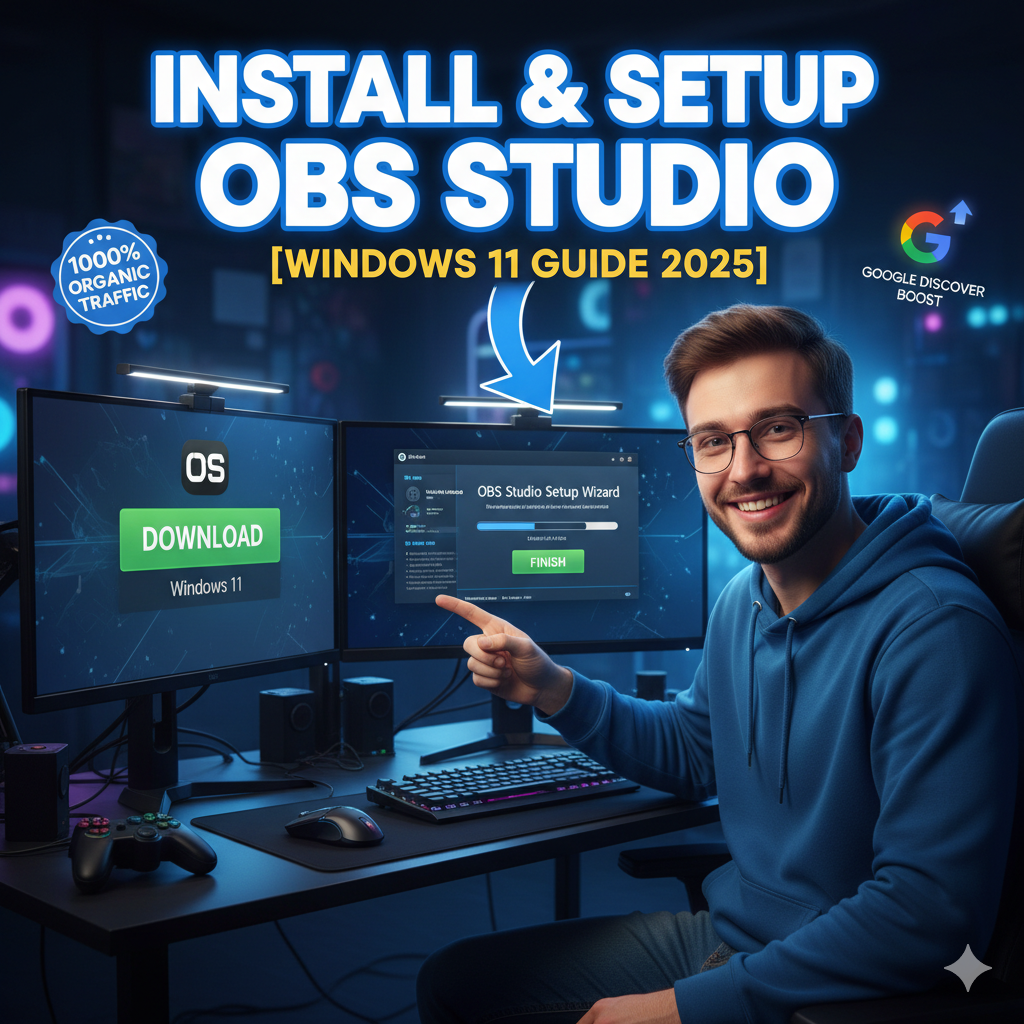


OBS Studio (Open Broadcaster Software) is one of the most popular free tools for live streaming and screen recording. Whether you want to record tutorials, stream games on Twitch or YouTube, or capture online meetings, OBS Studio provides professional-quality features — completely free of cost.
In this article, we’ll walk you through the step-by-step process to download, install, and set up OBS Studio on Windows 11 in 2025. This guide is perfect for beginners as well as intermediate users.
—
Why Choose OBS Studio?

Free and Open Source – 100% free, no watermark
Multi-platform – Works on Windows, macOS, Linux
High-Quality Recording – Up to 4K video support
Streaming Support – Twitch, YouTube, Facebook Live, etc.
Customizable – Add overlays, transitions, plugins
—
Step 1: Download OBS Studio
1. Visit the official website → https://obsproject.com
2. Choose Windows as your operating system.
3. Click the Download Installer button.
4. Save the installer file (.exe) to your computer.
👉 Tip: Always download from the official website to avoid malware.
—
Step 2: Install OBS Studio
1. Locate the downloaded file → OBS-Studio-Setup.exe.
2. Double-click the file to run the installer.
3. Accept the User Account Control (UAC) prompt.
4. Select Next and agree to the license terms.
5. Choose the installation folder (default is fine).
6. Click Install and wait for the setup to complete.
7. Hit Finish to launch OBS Studio.
—
Step 3: Initial Auto-Configuration
When you open OBS Studio for the first time:
1. OBS will ask if you want to run the Auto-Configuration Wizard.
2. Choose between:
Optimize for streaming (if you’re live streaming)
Optimize for recording (if you’re making tutorials, gameplay, etc.)
3. OBS will test your system and suggest recommended settings.
—
Step 4: Add Sources
Sources are the input you want to record or stream.
Screen Capture – Records your entire screen
Window Capture – Records only one application
Game Capture – Optimized for video games
Webcam Capture – Add your webcam feed
Audio Input/Output Capture – Add mic & system sound
👉 To add a source:
1. Click the + button in the Sources panel.
2. Select the type of source (Screen, Game, Audio, Webcam, etc.).
3. Configure the settings and press OK.
—
Step 5: Configure Output Settings
Go to Settings → Output
Recording Path: Choose the folder where your videos will save.
Recording Format: MP4 (recommended), MKV, or FLV.
Encoder:
Use Hardware (NVENC/AMD) if you have a GPU.
Use Software (x264) if you rely on CPU.
—
Step 6: Configure Video Settings
Go to Settings → Video
Base Resolution: Your screen resolution (e.g., 1920×1080).
Output Resolution: 1920×1080 (Full HD) or 1280×720 (HD).
FPS (Frames Per Second):
30 FPS for normal videos
60 FPS for gaming/streaming
—
Step 7: Connect to Streaming Platforms
To live stream on YouTube, Twitch, or Facebook:
1. Go to Settings → Stream.
2. Select the platform (YouTube/Twitch/Facebook).
3. Enter your Stream Key (found in your account dashboard).
4. Press Apply → OK.
Now just click Start Streaming to go live!
—
Step 8: Start Recording
If you only want to record:
Click Start Recording
Do your screen capture or tutorial
Click Stop Recording when done
Your video will save in the folder you selected earlier
—
FAQs
Q1: Is OBS Studio free forever?
Yes, OBS Studio is open-source and 100% free.
Q2: Can OBS record in 4K?
Yes, if your PC hardware supports it.
Q3: Does OBS slow down PC performance?
OBS is optimized, but recording at high quality (4K/60FPS) may require a good GPU/CPU.
Q4: Can I use OBS Studio on a laptop?
Yes, but make sure your laptop has enough RAM and a good CPU/GPU for smooth recording.
Q5: Is OBS better than paid screen recorders?
For most users, OBS is as good (or better) than paid software since it has pro-level features for free.
—
Conclusion
OBS Studio is one of the most powerful and versatile free software tools for recording and streaming on Windows 11 in 2025. With just a few simple steps, you can set up OBS to record tutorials, gameplay, or live stream on popular platforms like YouTube and Twitch.
If you’re looking for a free, professional, and reliable solution, OBS Studio should be your first choice.