



Introduction
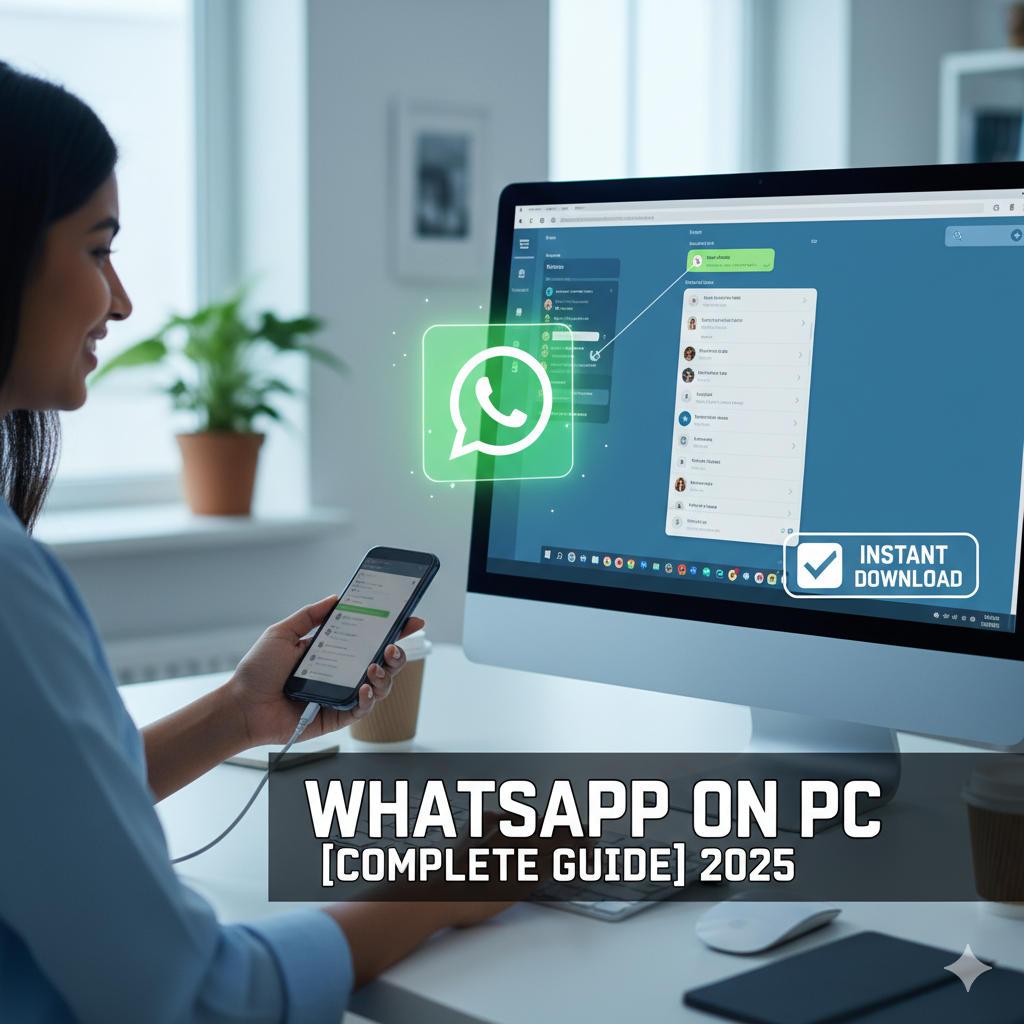
WhatsApp is the most popular messaging app in the world, and in 2025, millions of users want to use it on their PC or laptop for convenience. Whether you are working, studying, or just prefer a bigger screen, running WhatsApp on Windows or Mac can make chatting easier.
In this guide, we’ll explain how to download and install WhatsApp on PC in 2025 step by step.
—

1. Official Ways to Use WhatsApp on PC
There are two official methods:
1. WhatsApp Web – Use WhatsApp in your browser.
2. WhatsApp Desktop App – Download and install on Windows or Mac.
—
2. Using WhatsApp Web (No Installation Required)
Open your browser (Chrome, Edge, Firefox, Safari).
Visit web.whatsapp.com.
Open WhatsApp on your phone → Tap Menu > Linked Devices > Link a Device.
Scan the QR code shown on your PC.
👉 You can now send and receive messages directly on your computer.
—
3. Installing WhatsApp Desktop App (Windows/Mac)
For Windows 11 / Windows 10
Visit the Microsoft Store.
Search WhatsApp Desktop.
Click Get > Install.
For Mac (macOS 10.15 or later)
Go to Mac App Store.
Search for WhatsApp Desktop.
Download and install the app.
👉 Login using the QR code method (same as WhatsApp Web).
—
4. Using WhatsApp Without Phone (2025 Update)
In 2025, WhatsApp supports multi-device login.
You can use WhatsApp on PC even if your phone is offline.
Simply link your account once, and messages sync automatically.
—
5. Installing WhatsApp APK on PC (Alternative Method)
If you want Android features on PC:
Download BlueStacks Emulator from its official website.
Install BlueStacks and open it.
Sign in with your Google account.
Download WhatsApp APK from the Google Play Store inside BlueStacks.
👉 This lets you use the full mobile version of WhatsApp on PC.
—
6. System Requirements (2025)
Windows: Windows 10 (64-bit) version 1903 or newer, Windows 11
Mac: macOS 10.15 or newer
RAM: Minimum 4GB
Internet: Stable broadband or Wi-Fi connection
—
7. Advantages of Using WhatsApp on PC
Larger screen and full-size keyboard typing
Easy file transfer between phone and PC
Sync messages across devices
Make voice and video calls directly from your computer
—
FAQs
Q1: Can I use WhatsApp on PC without a phone?
➡ Yes, WhatsApp multi-device feature in 2025 allows it.
Q2: Is WhatsApp Desktop safe to download?
➡ Yes, always download from Microsoft Store or Mac App Store.
Q3: Can I make video calls from WhatsApp Desktop?
➡ Yes, the 2025 version supports both voice and video calls.
Q4: Which is better, WhatsApp Web or Desktop App?
➡ Web is lightweight, Desktop app gives better performance and call support.
Q5: Can I install WhatsApp APK directly on Windows 11?
➡ Not directly, but you can use an emulator like BlueStacks.
—
Conclusion
Using WhatsApp on PC in 2025 is simple and convenient. You can choose between WhatsApp Web, WhatsApp Desktop App, or Android Emulator based on your needs. With the new multi-device feature, WhatsApp on PC is faster, safer, and doesn’t always need your phone online.
👉 Now you can enjoy seamless chatting, file sharing, and video calls on your Windows or Mac computer.