





Python has become one of the most popular programming languages in the world. Whether you are a beginner learning coding, a data scientist, or a developer building AI tools, Python is a must-have on your system.
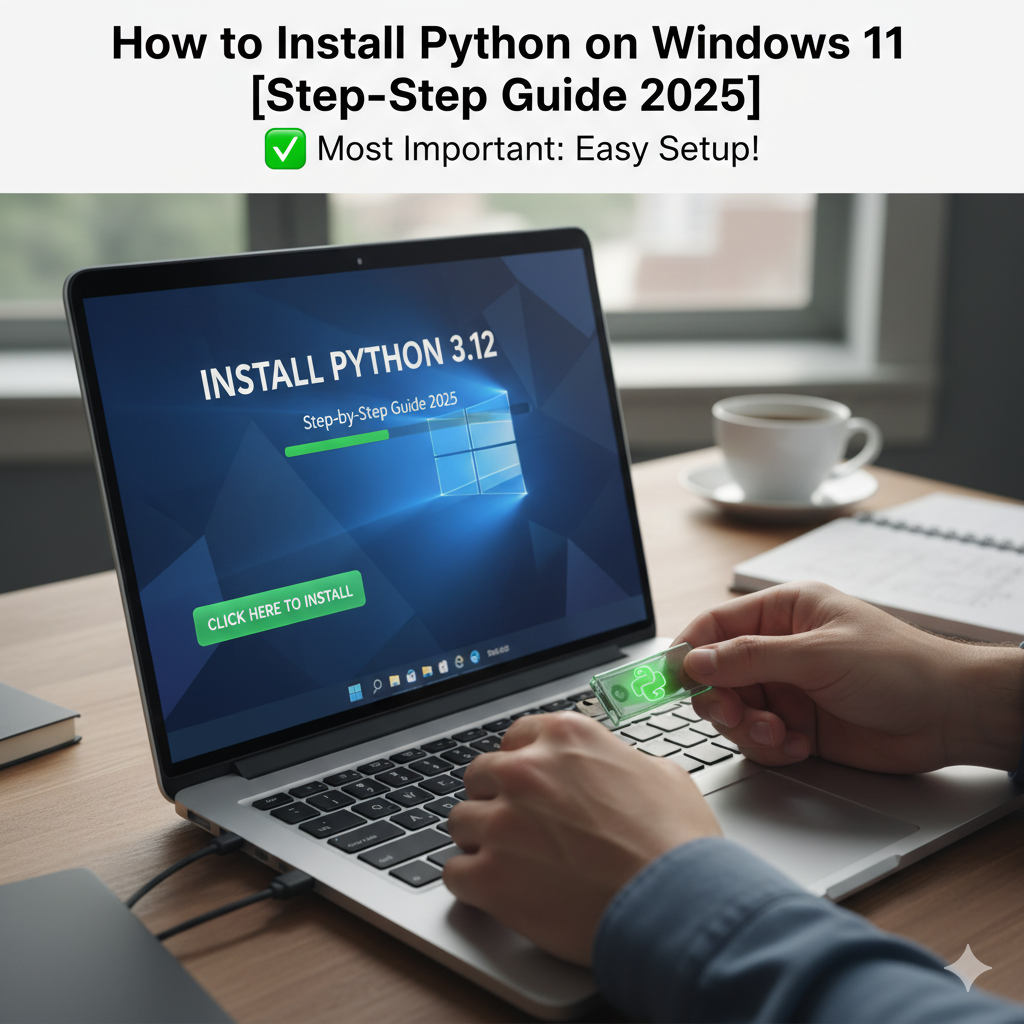
If you’re using Windows 11 and want to start coding in Python, you need to download, install, and configure Python properly. In this step-by-step guide, we’ll show you exactly how to install Python on Windows 11 in 2025, along with setting up environment variables and testing your installation.
—
Why Install Python on Your PC?
Beginner-friendly – Perfect for new coders
Versatile – Web development, AI, data science, automation
Free and Open Source – No cost to use
Cross-platform – Works on Windows, Mac, Linux
Huge Community Support – Tons of libraries and frameworks
—
Step 1: Download Python
1. Visit the official Python website → https://www.python.org
2. Go to the Downloads section.
3. The website will auto-detect your OS and suggest the latest stable version for Windows 11.
4. Click on Download Python 3.x.x (2025 latest version).
👉 Tip: Always download from the official website, not third-party sites.
—
Step 2: Run the Installer
1. Locate the downloaded file → python-3.x.x.exe.
2. Double-click to launch the installer.
3. Important: On the first screen, check the box that says “Add Python to PATH”.
4. Click Install Now (recommended for beginners).
5. Wait for the installation process to complete.
6. Once done, you’ll see a Setup was successful message.
—
Step 3: Verify Installation
To check if Python was installed correctly:
1. Press Windows + R, type cmd, and hit Enter.
2. In Command Prompt, type:
python –version
3. You should see the installed version number (e.g., Python 3.12.4).
—
Step 4: Install pip (Python Package Manager)
pip usually comes pre-installed with Python.
To verify, type in Command Prompt:
pip –version
If it shows a version number, pip is ready.
If not, you can manually install pip by downloading get-pip.py from Python’s official site.
—
Step 5: Set Up Environment Variables (If Needed)
If Python commands don’t work in CMD, you may need to add Python manually to PATH:
1. Search for Environment Variables in Windows 11 search bar.
2. Click Edit system environment variables.
3. Go to Environment Variables → Select Path → Click Edit.
4. Add the path where Python is installed (e.g., C:\Users\YourName\AppData\Local\Programs\Python\Python312).
5. Click OK and restart your PC.
—
Step 6: Test Python by Running Code
1. Open Command Prompt or Windows PowerShell.
2. Type:
python
3. You’ll enter the Python interactive shell.
4. Now type:
print(“Hello, World!”)
5. If it prints Hello, World!, your Python is installed successfully.
—
Step 7: Install an IDE (Optional but Recommended)
While you can write Python in Notepad, it’s better to use an IDE (Integrated Development Environment).
PyCharm (Community Edition) – Best for beginners & pros
Visual Studio Code – Lightweight & powerful
Jupyter Notebook – Ideal for data science & AI projects
Download and install your preferred IDE to make coding easier.
—
FAQs
Q1: Is Python free to use on Windows 11?
Yes, Python is completely free and open-source.
Q2: Which Python version should I install in 2025?
Always install the latest stable release from the official website.
Q3: Do I need to install pip separately?
No, pip comes bundled with the latest versions of Python.
Q4: Can I install multiple Python versions on the same PC?
Yes, but you’ll need to manage them using py launcher or virtual environments.
Q5: What is the best IDE for Python beginners?
VS Code and PyCharm Community Edition are the most recommended.
—
Conclusion
Installing Python on Windows 11 in 2025 is a simple process, but you need to make sure you set up the environment correctly. With just a few steps, you can start coding in Python, install libraries with pip, and run your first program.
Whether you’re interested in web develop
ment, machine learning, automation, or data science — Python is the perfect language to start your journey.
Now that Python is ready on your PC, it’s time to start coding your first project! 🚀