






Introduction
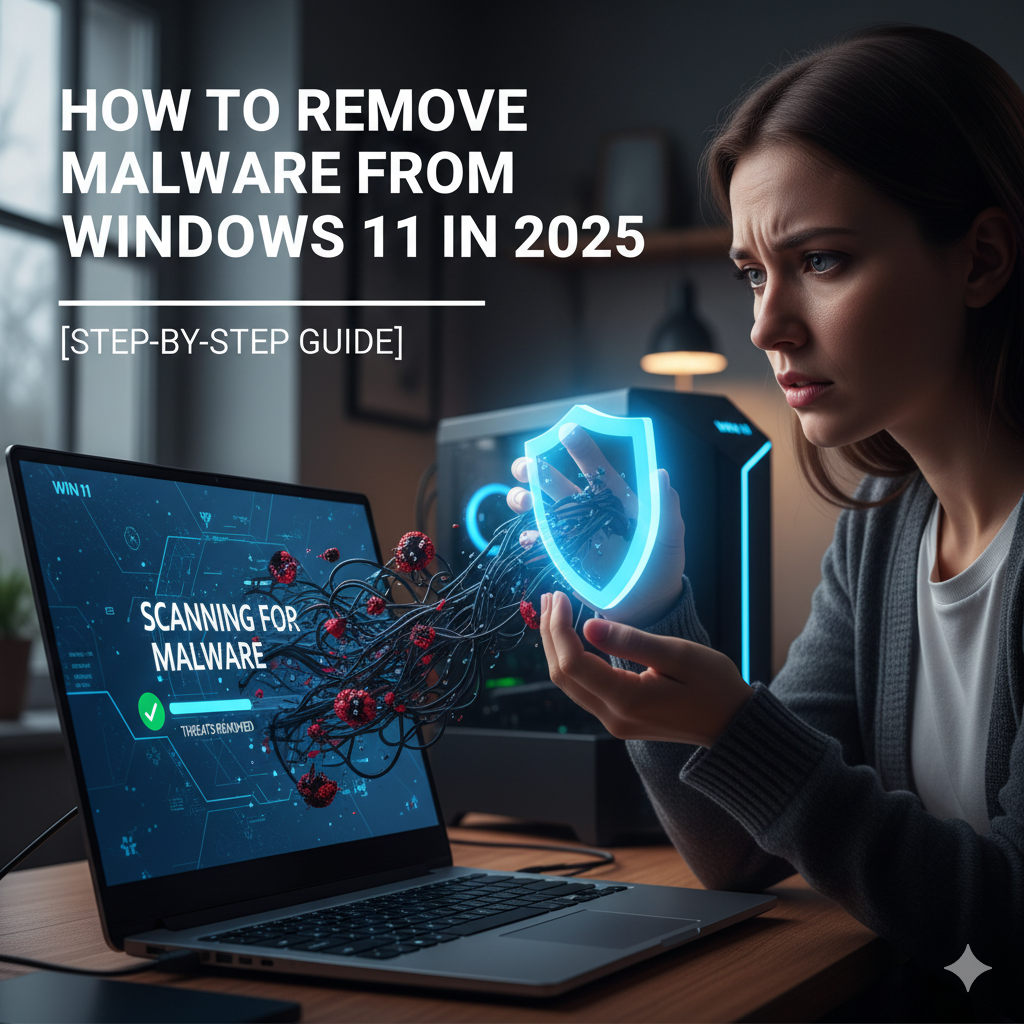
Malware is one of the biggest threats to Windows 11 users in 2025. It can slow down your PC, steal your personal data, and even damage important files. With new types of malware like ransomware, spyware, and trojans, it’s important to know how to detect and remove malware from Windows 11 safely.
In this guide, we’ll walk you through step-by-step methods to remove malware from Windows 11 without losing your files.
—

1. Identify the Symptoms of Malware
Some common signs include:
PC suddenly becomes slow
Pop-up ads or unwanted programs appear
Unknown apps installed automatically
Internet usage spikes
Antivirus disabled automatically
👉 If you notice these, your PC might be infected.
—
2. Disconnect from the Internet
The first step is to cut off malware’s communication.
Turn off Wi-Fi or unplug Ethernet cable.
This prevents further data theft or spreading.
—
3. Enter Safe Mode
Press Win + I → Settings → System → Recovery.
Under Advanced startup, click Restart now.
Select Troubleshoot > Advanced options > Startup Settings > Restart.
Press F4 to enter Safe Mode.
👉 Safe Mode runs only essential services, making it easier to remove malware.
—
4. Run Windows Security (Defender)
Open Start > Settings > Privacy & Security > Windows Security.
Click Virus & Threat Protection → Scan options.
Choose Full Scan and remove detected threats.
—
5. Use Malware Removal Tools
In 2025, the best free tools include:
Malwarebytes Free
HitmanPro
AdwCleaner
👉 Download from official websites only, scan, and quarantine threats.
—
6. Delete Temporary Files
Press Win + R, type %temp%, and hit Enter.
Delete all temporary files.
Malware often hides in temp folders.
—
7. Check Installed Programs
Go to Settings > Apps > Installed apps.
Uninstall suspicious software you don’t recognize.
Cross-check program names on Google to confirm if legit.
—
8. Reset Browser Settings
Many malware hijacks browsers.
Open Chrome/Edge → Settings > Reset settings.
Remove unknown extensions.
Change homepage and search engine back to default.
—
9. Update Windows and Drivers
Go to Settings > Windows Update.
Install all pending updates.
Security patches protect you from future attacks.
—
10. Restore System (If Needed)
If malware is still present:
Open Control Panel > Recovery > Open System Restore.
Select a restore point before infection.
👉 This rolls back your system to a clean state.
—
Bonus: Prevent Future Malware Attacks
Use a reliable antivirus (Windows Defender + Malwarebytes).
Don’t download cracked software.
Avoid suspicious email attachments.
Keep backups of important data on external drives.
—
FAQs
Q1: What is the best free malware removal tool in 2025?
➡ Malwarebytes and Windows Defender.
Q2: Can malware survive after Windows reset?
➡ No, a full reset removes almost all malware.
Q3: Is Windows Defender enough in 2025?
➡ Yes, it’s strong, but combining with Malwarebytes adds extra protection.
Q4: How often should I scan my PC for malware?
➡ At least once a week.
Q5: Does malware affect SSDs and HDDs differently?
➡ Malware targets data, not hardware, so both are vulnerable.
—
Conclusion
Malware can harm your Windows 11 system in 2025, but with the right steps, you can remove it completely. By using Safe Mode, Windows Defender, Malwarebytes, and system restore, you can clean your PC and keep it safe.
👉 Remember: Prevention is better than cure. Always keep Windows updated, use antivirus, and avoid unsafe downloads.